Content Manager
i-Showcase Content Management
Your website content is mostly comprised of two types of pages: Category pages and Product pages. The easiest way to divide the two is to definie category pages as anything that isn't a product. Products are always Page Type 2, while Category pages can be any other page type (and can be changed as necessary).
Navigating the Content Manager
Accessing the Brand Table
To reach the Content Manager in Portal, click on the button "CONTENT MANAGER" from the home page. This will take you to the Brand Table.

Here, you can change settings for your brand and create/edit content for each brand. Most likely, you have only one "brand" listed here, under your company's name.
Brand Name: The name of the Brand you are managing. You may access and control multiple brands, depending on your needs.
Actions  : This leads to all of the pages and products within the brand, starting with the home page.
Brand Status: The button here will say either "DISABLE" or "ENABLE." Disable will universally prevent front end access to the website and any of its pages. This option is for emergency situations only.
Publish: This will show if your brand has been published ( ) or not (
 ). Publishing your brand will push new pages and products to the live website.
Brand Settings  : These are the settings for the selected brand. This is where language, group, news and specification management are activated for
use.
: These are the settings for the selected brand. This is where language, group, news and specification management are activated for
use.
Language Manager  : The Language Manager allows you to add languages to your brand and set your default language.
Group Manager  : The Group Manager allows you to create dealer groups and group management users. Each group can have their own currency and prices
designated, and you will also be able to disable pages and products for individual groups.
: The Group Manager allows you to create dealer groups and group management users. Each group can have their own currency and prices
designated, and you will also be able to disable pages and products for individual groups.
News Manager  : Here, you may create, organize, edit, and delete your news and media articles.
Specification Manager  : Here, you may create search specification types and values for you to display on product pages or integrate in a customized product search. This
i-Showcase module is available upon request.
: Here, you may create search specification types and values for you to display on product pages or integrate in a customized product search. This
i-Showcase module is available upon request.
Content Manager User Interface
To manage your brand's content, you must select the icon next to your brand in the brand table. This will
take you to the first page of your content, the home page. Once you are inside your brand, you will a page similar to the screenshots on the left:
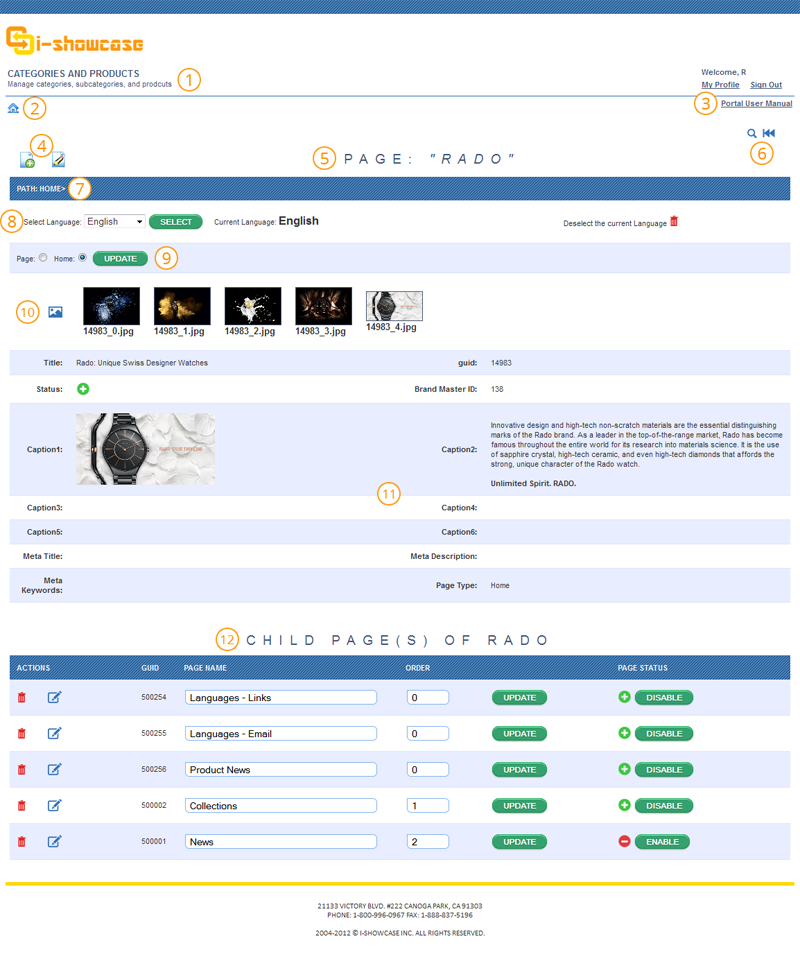
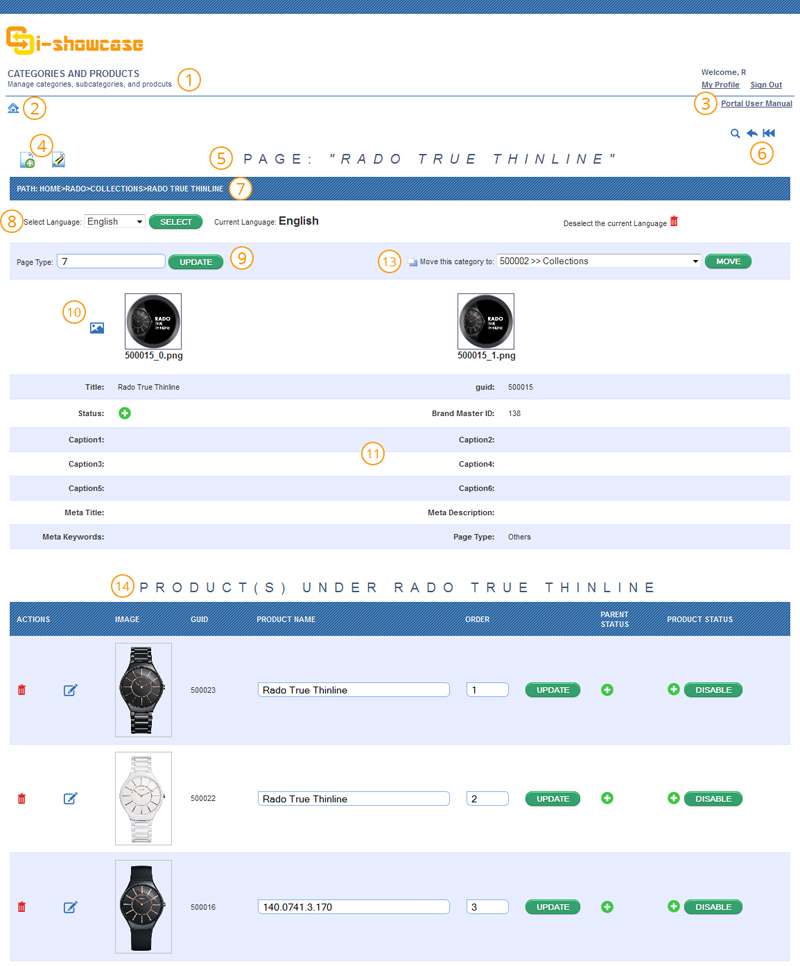
- Help Text: This text is a description of the type of page you are on in the back end.
- Home
 : This will take you back to the Portal Home page, where you can access your modules.
 - User Manual: If you ever need help using Portal, this link will lead you to this website.
- Add Page
 : This will take you to the category/product creation page.
Edit Page : This is the edit button for to the particular page you are on.
 - Page Name: The page name here will be the Page Path Name of your current location.
- Search
 : This icon will take you to the backend search page, where you can submit a query to the current brand.
Back : This will take you one step back in the path (breadcrumbs). Always use this icon to navigate
back, not your browser's back button.
: This will take you one step back in the path (breadcrumbs). Always use this icon to navigate
back, not your browser's back button.
Brand Page : This will take you back to the Brand Table.
 - Breadcrumbs: On each page, the Breadcrumbs will help you determine where you are inside of your content tree. The page you are currently on will always be the last page displayed in the breadcrumbs.
- Language Selection: This bar is used for managing the different languages that you have set for your website. To control which languages are available, you must set them in the Language Manager. To switch data entry to a new language, find the language in the drop down menu and click "Select."
- Page Type: This function controls the Page Type of the current page. Page Type cannot be altered on Product Pages, which can only be page type 2. For more information on Page Types, please refer to your Page Types Document.
- Image Uploader
 : Clicking on this icon will lead you to the
image uploader page.
: Clicking on this icon will lead you to the
image uploader page. - Page Content: The information here displays status and content specific to the current page. The Title, Captions 1-6, and Meta details are editable by clicking on the
icon above. The GUID (Global Unique Identifier) is a number that assigned only to this
page. Sometimes, you may need this GUID for some of your content management.
- Child Table: This table lists the Child Pages of the page you are currently on, which is called their Parent.
Action : This icon will lead you to one of the Children. - Move
 : This function will move the current page you are viewing to the new location specified. The location will become this page's new parent. The move function cannot be
used on the homepage.
: This function will move the current page you are viewing to the new location specified. The location will become this page's new parent. The move function cannot be
used on the homepage. - Product Table: This table lists the Product Pages of the pages you are currently on, which is called their Parent.
Action : This icon will lead you to one of the Products.
Content Manager with Other Modules
Language Manager
Group Manager
If you have group management activated for your brand, you will see the Group Manager Table on each category and product page. In this table, each group that you have made will be listed, along with their currency (currency is selected from the Group Management Settings, page 8). From this table, you can enable/disable individual pages.